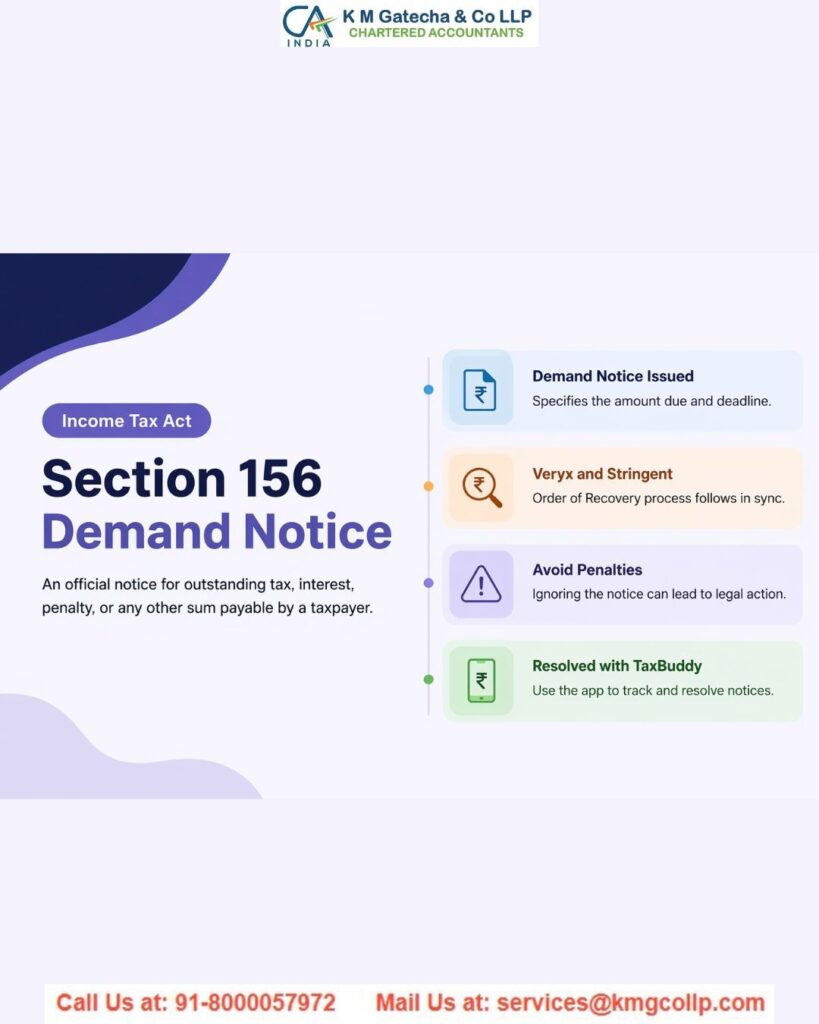
A Section 156 demand notice is sent by the Income Tax Department when you have tax to pay. This can include tax, interest, penalty, or fines based on an order passed under the Income Tax Act.
In simple terms, the Assessing Officer (AO) issues this notice when they calculate that you owe money to the tax department.
Also, notices issued under Sections 143(1), 200A(1), and 206CB(1) are treated as demand notices under Section 156.
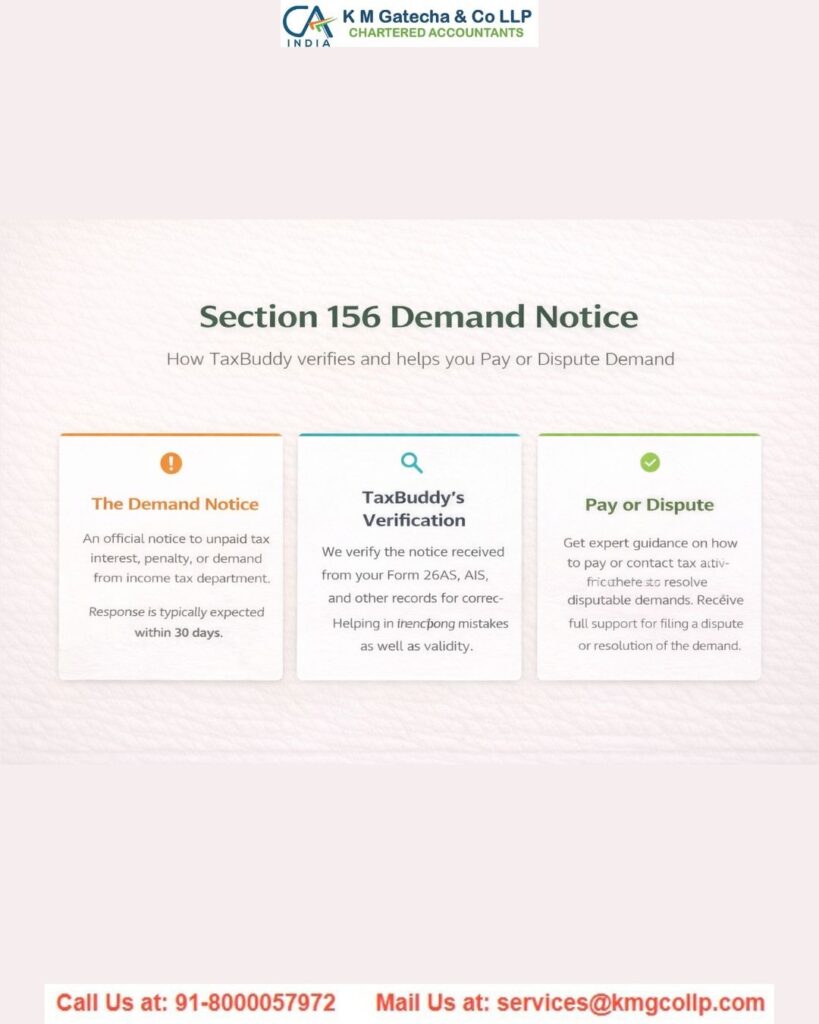
Payment Time Limit
- You must pay the amount within 30 days of receiving the notice
- In some cases, the officer may ask for earlier payment (less than 30 days) with approval from a senior officer
What to Do
- Check the notice carefully
- Pay the amount if correct, or respond if there is any mistake
What is Section 156 of the Income Tax Act?
A Section 156 demand notice is issued by the Income Tax Department when you have tax dues to pay. This may include tax, interest, penalty, or fines based on an order under the Income Tax Act.
Once you receive this notice, you usually have 30 days to pay the amount.
Common Reasons for Getting a Demand Notice under Section 156
- Difference in Tax Calculation
If the tax you paid is less than what the department calculates, you may get a notice. - TDS Mismatch
If the TDS you claimed does not match the department’s records, it can lead to a demand notice. - Unreported Income
If you forgot to report some income, the department will ask you to pay tax on it. - Disallowed Deductions or Exemptions
If the deductions or exemptions you claimed are not accepted, you may have to pay extra tax.
What to Do After Receiving a Demand Notice?
Once you receive a demand notice under Section 156, you should take action quickly and respond within the given time.
Steps to follow:
- Read the notice carefully
Check the details of the amount due and make sure the notice is genuine. - Check if the demand is correct
Understand whether the demand is:- Fully correct
- Partly correct
- Correct with some adjustments
- Completely wrong
How to Respond to an Outstanding Demand Notice?
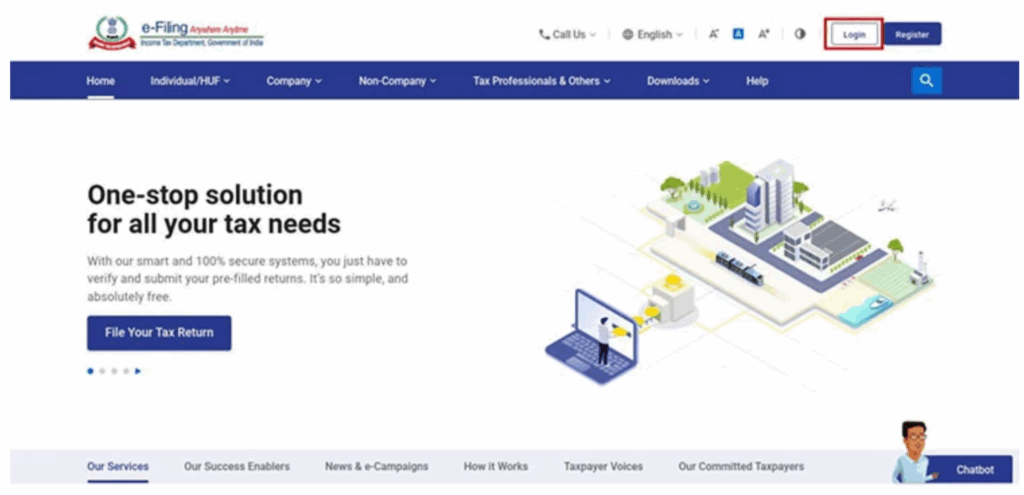
Step 1: Login to Income Tax Portal
Go to the income tax e-filing website and log in using your PAN (User ID) and password.
Step 2: Check Outstanding Demand
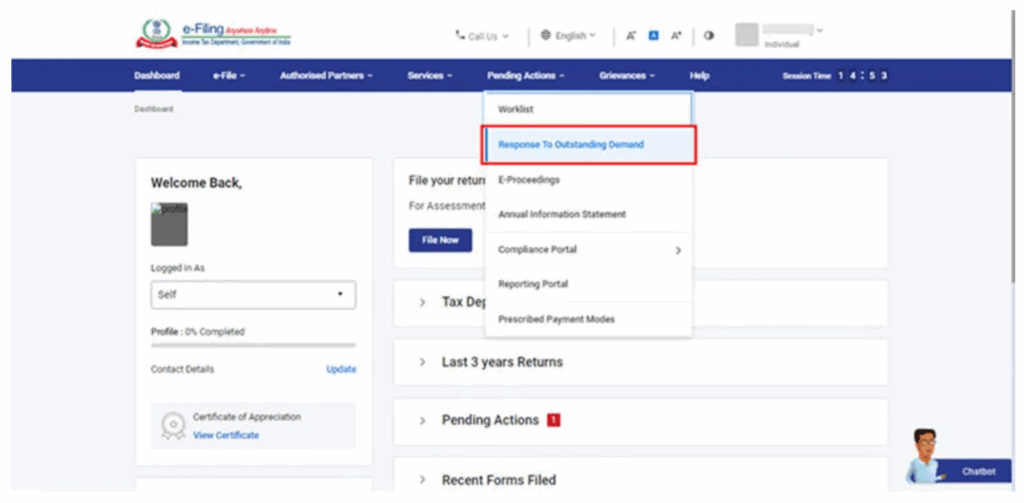
- Go to “Pending Actions” on the dashboard
- Click on “Response to Outstanding Demand”
- You will see a list of any pending tax demands
Step 3: Submit Your Response
On the “Response to Outstanding Demand” page, click on “Submit Response”.
Then select the option that matches your situation (like agree, disagree, or partly agree with the demand).
If the Demand is Correct and Not Paid
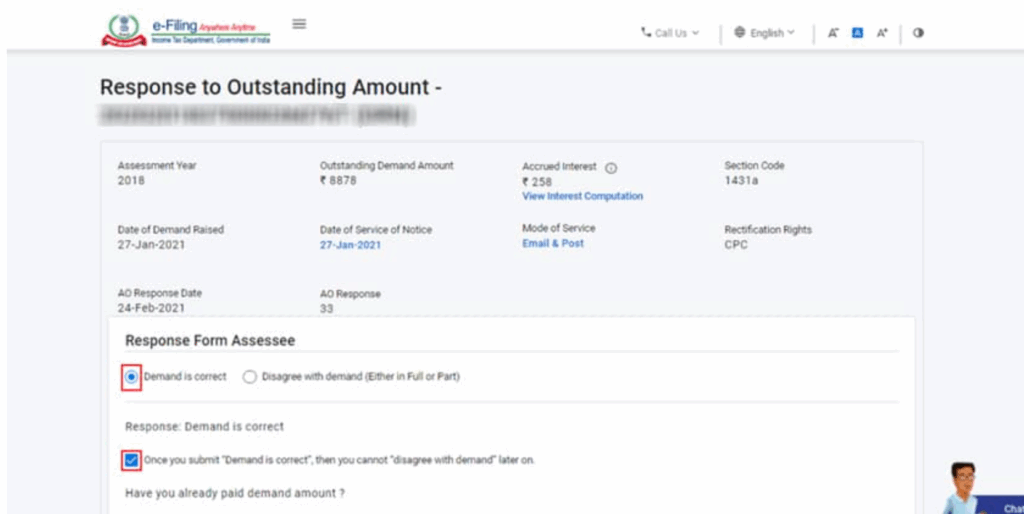
- Select “Demand is correct” (you can’t change this later)
- Click “Not Paid Yet” and then “Pay Now”
- Pay the amount online
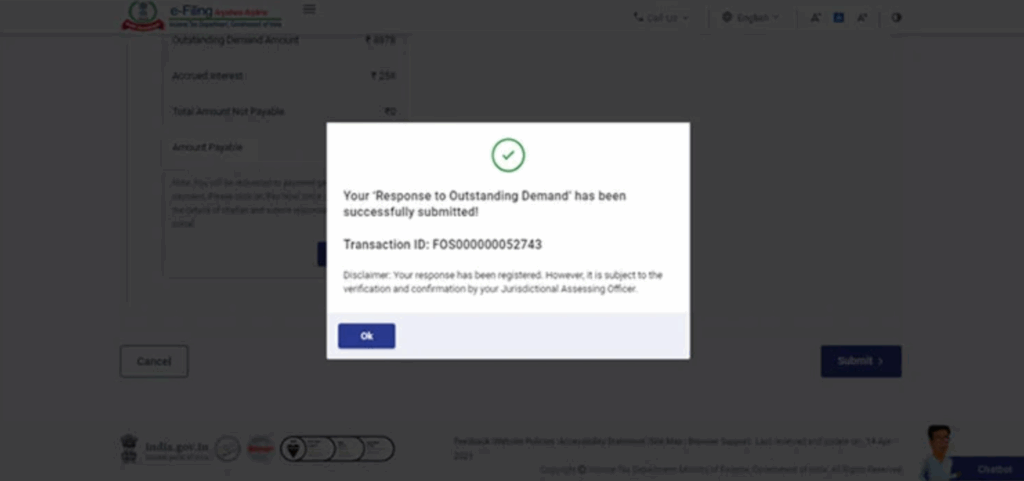
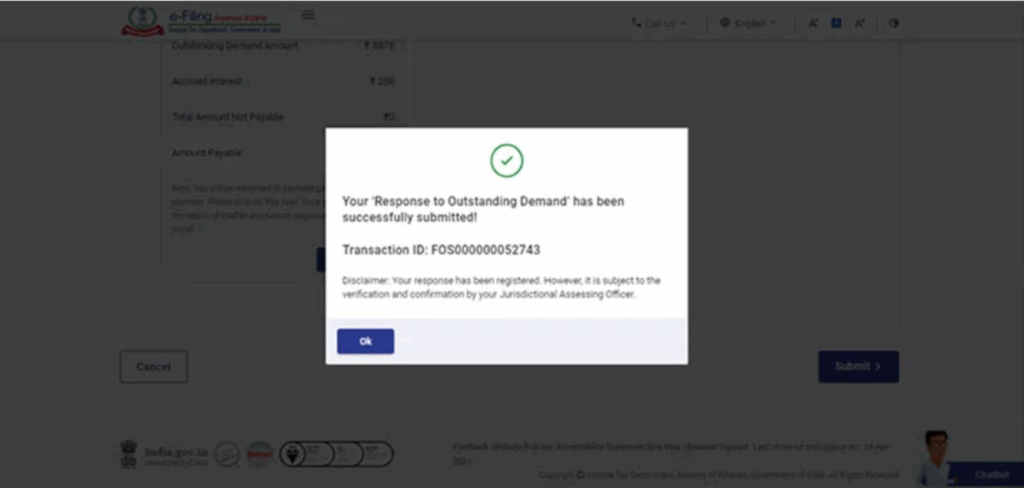
- After payment, you’ll get a confirmation message and transaction ID
B. If the Demand is Correct and Already Paid
- Select “Demand is correct”
- Choose “Already paid”
- Click “Add Challan Details”
Enter the details:
- Payment type
- Amount paid
- BSR code
- Challan number
- Payment date
- Upload the challan (PDF) and click Save
C. If You Disagree with the Demand
- Select “Disagree with the demand” (full or partial)
- Click “Add Reasons” and explain why
- Submit your response
After submission, you will get a transaction ID as confirmation
Steps to Respond to Notice – Option 1: If You Agree with the Demand
If you agree with the demand, select “Demand is correct” on the response page and accept the disclaimer.
Important: Once you submit this option, you cannot change your response or disagree later.
Click “Pay Now” if unpaid and complete payment, then save the Transaction ID.
If already paid, add challan details, upload proof, and submit. A Transaction ID will be generated again—save it for records.
Option 2: Disagree with the Demand
On the response page, select “Disagree with the demand” and click “Add Reasons” to explain your issue.
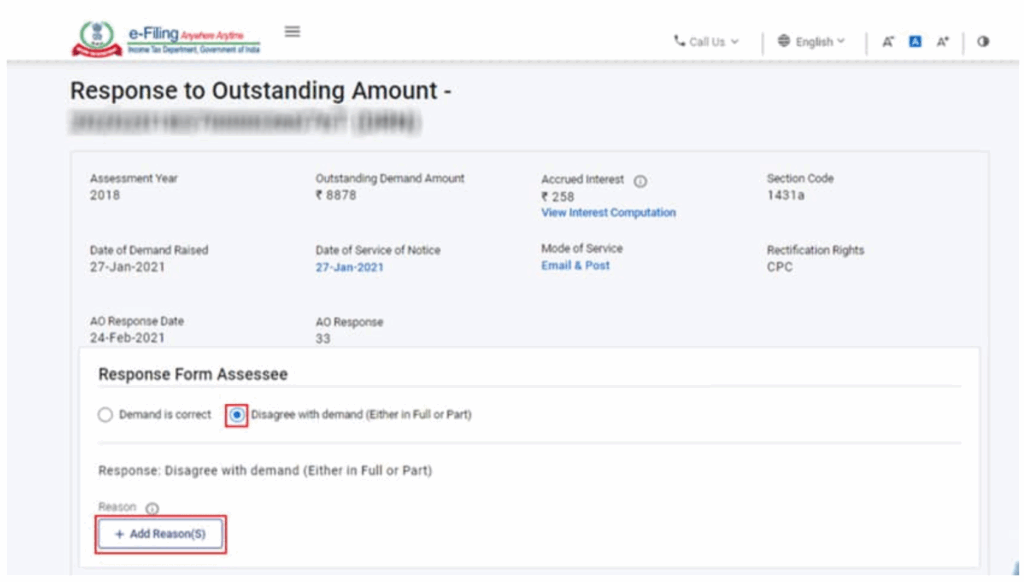
To choose the reason for your disagreement, select one or more options and click Apply.
Common Reasons for Disagreement:
- Already paid – Enter details like CIN, BSR code, date, challan number, and amount
- Reduced after correction (rectification/revision) – Provide order date and updated demand details
- Reduced after appeal – Enter appeal order details and authority info
- Appeal filed – Mention status (stay request, approved stay, or installments)
- Revised return/rectification filed online – Add details of the updated return
- Rectification filed with officer – Enter application date and remarks
- Others – Add your own reason
After selecting the reasons, fill in the required details for each one and submit.
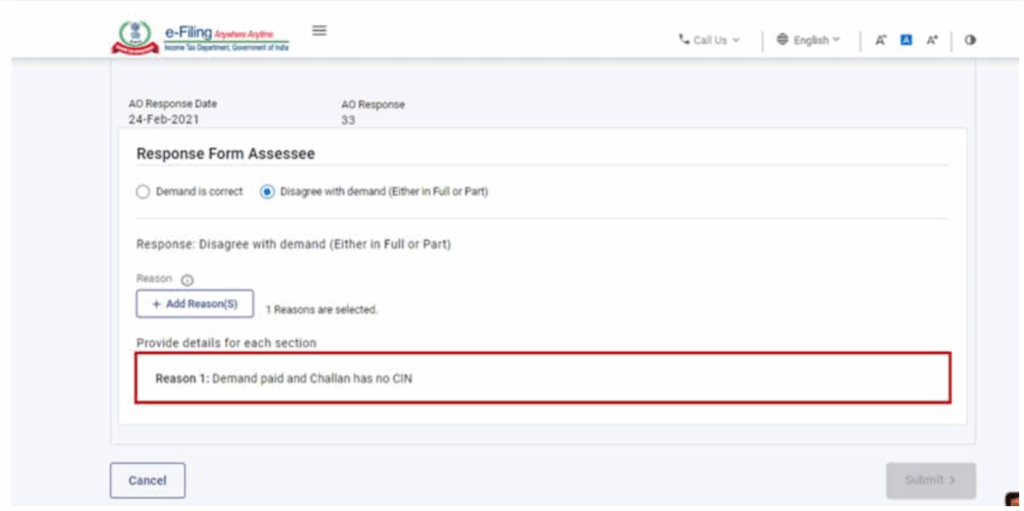
NOTE: Once you fill in the details, the status will show as “Completed” for each selected reason.
If you have partially disagreed, you can click “Pay Now” to pay the remaining amount shown in the summary.
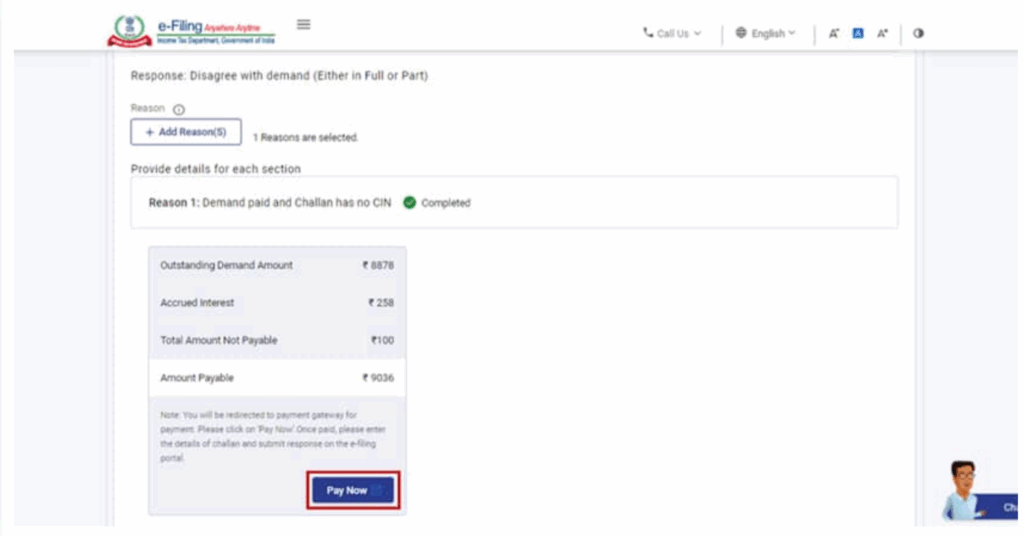
NOTE: You will be redirected to the e-Pay Tax page to make the payment.
After paying, return to the response page and click Submit to complete your response.
Click “Confirm” to complete your submission.
After successful submission, you will see a confirmation message along with a Transaction ID. Make sure to save this ID for future reference.
After submitting, you will see the updated details in the Response to Outstanding Demand section.
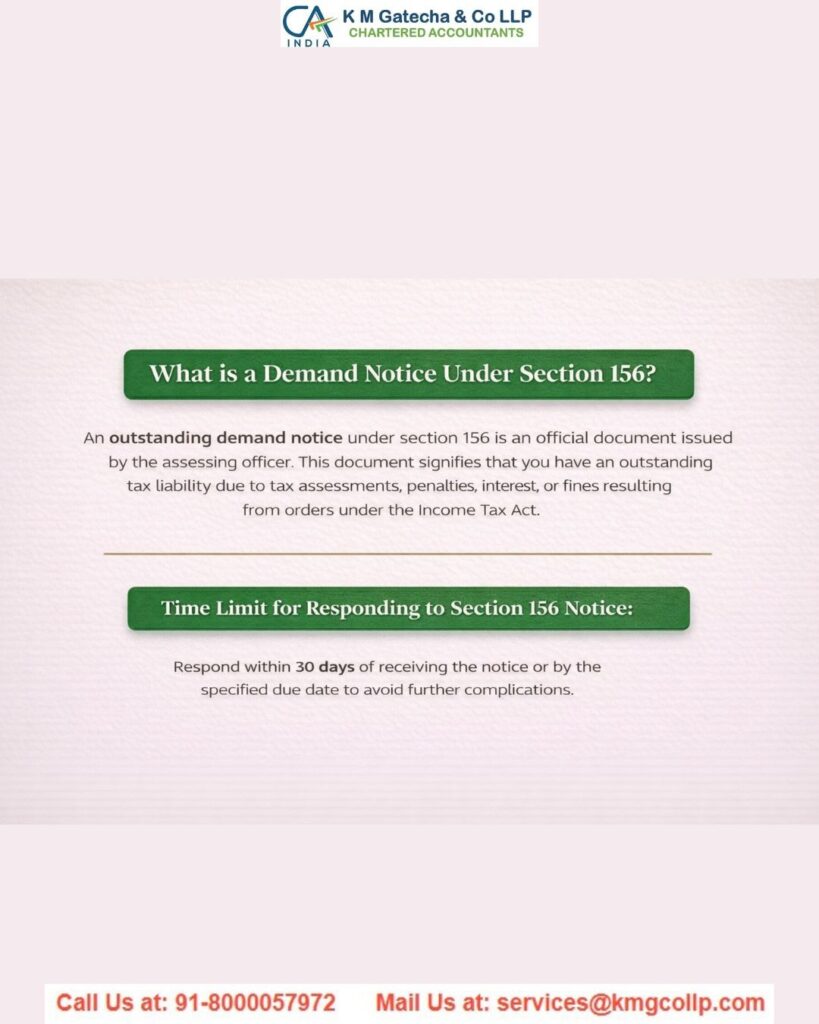
What Happens If You Delay Payment?
- Interest (Section 220(2))
You will have to pay 1% interest per month or part of a month after the 30-day period ends. This applies even if you get an extension or installment approval. - Penalty (Section 221)
The officer may charge a penalty up to the full demand amount. However, no penalty is charged if you can prove the delay was due to a valid reason.
How to Check if the Demand Notice is Genuine
Always check the DIN number on the notice and verify it on the official income tax portal using “Authenticate Notice/Order” with OTP. Also confirm it appears in your income tax account. If it cannot be verified, do not pay or respond immediately.
Disclaimer: The content on this website is for informational purposes only and does not constitute legal, financial, or professional advice. Please consult qualified experts before acting on any information. K M GATECHA & CO LLP accepts no liability for errors, omissions, or outcomes from the use of this content. This site is not an advertisement or solicitation.